
How to Generate Captions on TikTok A Creator's Guide
Adding captions to your TikTok videos is simpler than you might think.Adding captions to your TikTok videos is simpler than you might think. You can either let TikTok’s native Auto-Captions feature do the heavy lifting or manually add and style your own text for ultimate control. Either way, you get to fine-tune the timing and look, making your content more engaging and accessible in a snap.
Why TikTok Captions Are a Non-Negotiable for Growth
Before we jump into the "how," let's talk about the why. Seriously, captions are not just some afterthought text overlay. They're a core strategic tool that has a direct line to your watch time, engagement, and how far the TikTok algorithm pushes your content.
Think about where people are scrolling through their For You Page—on a noisy bus, in a quiet waiting room, or late at night next to a sleeping partner. In these "sound-off" situations, your captions are the only bridge between the viewer and your message. Without them, you’re just another silent video getting swiped away in under a second. With them, you grab their attention and keep them locked in.
Boosting Watch Time and Engagement
On a platform where every millisecond counts, captions make your content instantly digestible. Viewers can immediately see what your video is about, which makes them far more likely to stick around.
That extra watch time is pure gold. It signals to the algorithm that your content is valuable, prompting it to serve your video to a much wider audience.
The proof is in the numbers. TikTok's overall content engagement rate hit an incredible 4.64% in 2024, absolutely demolishing Instagram's 0.7% and Facebook's 0.15%. A big part of this is how people use the app—they spend an average of 53.8 minutes a day scrolling, and those eye-catching text overlays make videos skimmable and seriously boost watch time. You can dive deeper into these impressive TikTok statistics and see what they mean for creators.
Expanding Your Reach Through Accessibility
Captions do more than just keep silent scrollers engaged; they open your content up to a much larger world. This includes:
- The Deaf and Hard-of-Hearing Community: You’re ensuring that millions of users who are deaf or hard of hearing can actually enjoy and interact with what you create.
- Non-Native Speakers: TikTok is global. Subtitles give viewers who aren't fluent in your language the context they need to understand and appreciate your video.
- Enhanced Clarity: Let’s be honest, even with perfect audio, fast-talking, regional accents, or complex topics can be tough to follow. Captions make your message crystal clear.
Key Takeaway: Stop thinking of captions as just an accessibility feature and start seeing them as a powerful growth hack. By making your content consumable for everyone, you're maximizing its potential reach and impact. Every creator who learns how to generate captions on TikTok is unlocking a bigger, more engaged audience.
Using TikTok's Native Caption Features
TikTok has a surprisingly powerful set of built-in tools for adding captions, and you don’t need to be a video editing wizard to use them. Mastering these native features is your first stop. You really have two main choices here: let the app’s AI do the heavy lifting with Auto-Captions, or get hands-on and add them manually for full creative control.
The fastest way to get captions on your video is with TikTok’s Auto-Captions feature. It's a real game-changer. Once you've recorded or uploaded your clip and you're on the main editing screen, just find the "Captions" icon on the right-hand menu. Tap it, and TikTok will get to work, listening to your audio and turning it into text right on the screen.
The whole process is incredibly quick—usually under a minute. And honestly, the accuracy is pretty solid right out of the gate, especially if you speak clearly. For creators pumping out content daily, this feature is a massive time-saver.
Activating and Editing Auto-Captions
Once TikTok spits out the transcription, it's time for you to add the human touch. The app doesn't just leave you with the raw text; it opens up a simple editor where you can fine-tune everything. This is where you'll correct any weirdly transcribed words, add some much-needed punctuation, and make sure the text is a perfect match for what you actually said.
Don't skip this step. The AI is good, but it's far from perfect. I've seen it stumble on a few common things:
- Proper Nouns: It often botches brand names, unique spellings, or company names.
- Technical Jargon: If you're in a specific niche, it might hear your industry term and swap it for a more common (and wrong) word.
- Punctuation: The AI almost never adds commas or periods, which can totally kill the flow and readability of your message.
Pro Tip: I always read my captions out loud while I'm editing them. It sounds simple, but it's the best way to catch awkward phrasing and make sure the text flows naturally with your speech. It keeps the video's rhythm intact.
After you’ve polished the words, you can get creative with the style. TikTok lets you tweak the font, color, and even add a background highlight. This is key for branding and making sure your videos have a consistent, professional look.
Manually Adding and Timing Your Text
Sometimes, Auto-Captions just don't offer the creative punch you're looking for. In that case, you'll want to add your text manually. Instead of hitting the "Captions" button, you’ll use the "Text" tool. This method is perfect for adding short, punchy phrases, highlighting a single keyword for emphasis, or creating custom animated effects. If you really want to get creative, learning how to add text to TikTok videos in unique ways can give you a ton of fresh ideas.
When you add a text box this way, you get total control over its timing. Just select the text you’ve written, tap "Set duration," and a little timeline of your video will pop up. From there, you can drag the edges of the text clip to make it appear and disappear at the exact moment you want.
This precision is what lets you sync text to a beat drop, a sound effect, or a specific action on screen, which instantly makes your video feel more dynamic and polished. You can even stack multiple text boxes with different timings to make words pop up one by one. For more advanced techniques that work across different platforms, our comprehensive guide on how to add captions to videos is a great resource.
TikTok Captioning Methods Head-to-Head
So, which way should you go? It really comes down to what you're trying to achieve with your video. For talking-head vlogs, Auto-Captions are a lifesaver. For a stylized, high-energy promo, manual text is the only way to go.
To make it even clearer, here’s a quick comparison to help you decide which method is the right fit for your workflow.
| Feature | Auto-Captions | Manual Captions |
|---|---|---|
| Speed | Very Fast (under a minute) | Slower (requires typing and timing) |
| Accuracy | Good, but requires review | 100% accurate (you control it) |
| Creative Control | Limited styling options | Full control over timing, placement, and style |
| Best For | Dialogue-heavy videos, tutorials, vlogs | Short phrases, stylized text, call-to-actions |
Ultimately, both methods have their place in a creator's toolkit. The more comfortable you get with each, the more versatile your content will become.
Solving Common TikTok Caption Problems
Look, even the most experienced creators run into caption trouble. It happens. Whether it’s a weird technical glitch or your auto-captions just completely mishearing you, these problems are just part of the creative process. Let's walk through the most common headaches and how to fix them so you can get back to creating.
One of the biggest frustrations? Inaccurate auto-transcriptions. TikTok's AI is pretty solid, but it's far from perfect. It trips up on proper nouns, industry jargon, and even simple words if there's music or background noise. Don't sweat it—the fix is usually a quick manual edit.
Fixing Inaccurate Transcriptions and Sync Issues
When you spot errors in your auto-captions, jump right into the editor. You'll have to go through the text line-by-line to correct any weird spelling or awkward phrasing. My biggest tip? Pay close attention to punctuation. Simply adding commas and periods makes a huge difference in readability.
Another classic issue is timing sync. We've all seen it: captions that show up a full second before or after the person speaks. It’s jarring and immediately pulls the viewer out of the experience. To fix this, just tap the text block in the editor and use the timeline to drag its start and end points. You want them to line up perfectly with your speech. It takes a little patience, but the polish it adds is worth it.
If you're ever unsure which captioning route is best for your situation, this quick decision tree should help.
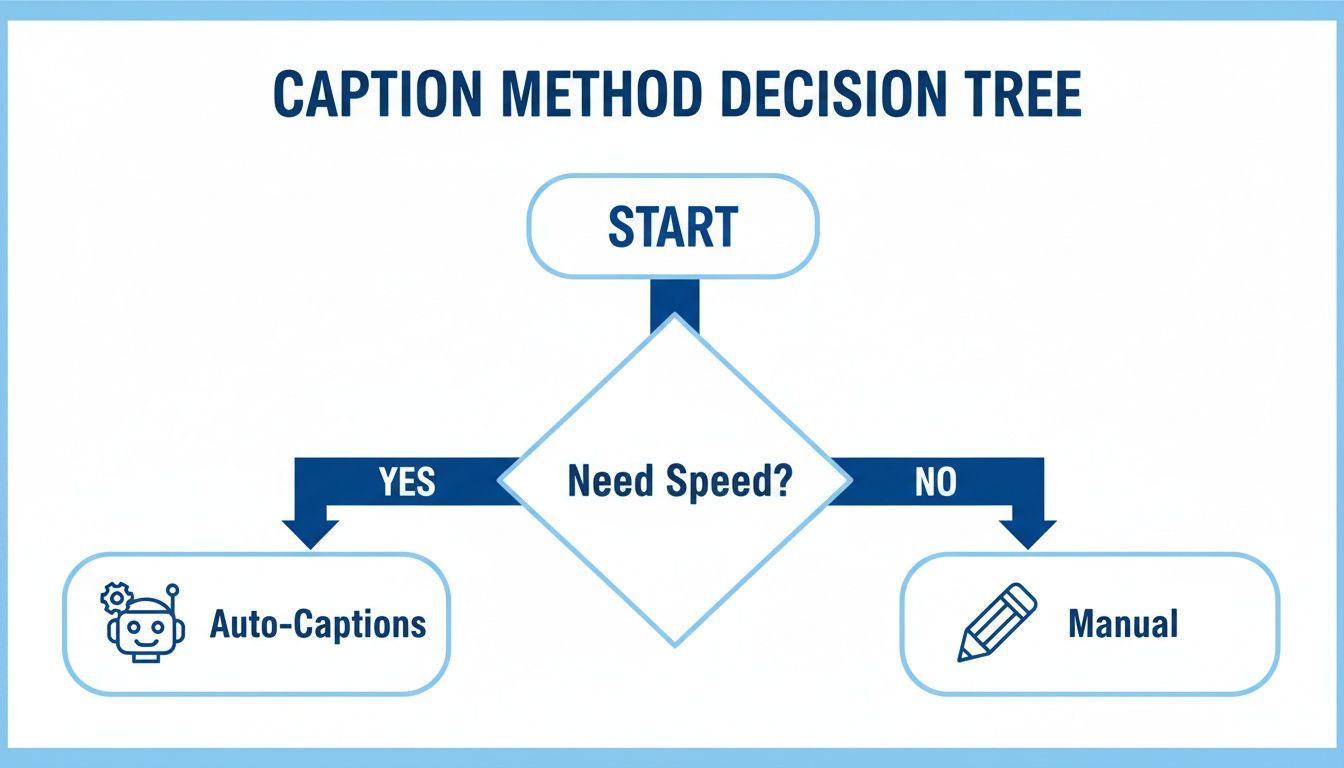
As you can see, if speed is your top priority, auto-captions are the obvious choice. But for maximum control, you'll want to go manual.
Overcoming Glitches and Limitations
Sometimes, the app itself is the real enemy. A particularly maddening glitch is when your perfectly timed and edited captions just... disappear after you post. While there isn't a magic "undo" button for this once the video is live, you can definitely take steps to prevent it.
Here are a few workarounds I've picked up for common platform glitches:
- Clear Your Cache: Before you start a big editing session, pop into your TikTok settings and clear the cache. This simple step can solve a surprising number of performance issues that cause glitches.
- Save a Draft (Always!): Get into the habit of saving your video as a draft with the captions applied before you hit post. If they vanish on the live video, you can go back to your draft and try again without redoing all the work.
- Screen Record as a Failsafe: For really complex or important captions, you can use this last-resort trick. Screen record your final preview from the draft. This "burns" the text directly into the video file, making it impossible for them to disappear.
Key Insight: Don’t let technical hiccups throw off your entire workflow. Most of these issues have simple, practical solutions. By knowing what to expect—like transcription errors or app glitches—you can have a backup plan ready and keep your content schedule on track without the frustration.
Finally, another frequent complaint is style settings not saving correctly. If you find your awesome font or custom color keeps reverting to the default, try this: apply the style, save the video to your drafts, completely close the app, and then reopen it to post. This little reset often forces the app to lock in your changes.
Level Up Your Videos with AI Caption Tools
While TikTok’s built-in features are a decent place to start, they can feel a bit restrictive when you're trying to scale your content and build a unique visual brand. Once you're ready to go beyond basic text overlays and create something that actually stops the scroll, it's time to look at third-party AI caption tools.
These platforms are designed for one thing: automating dynamic, engaging, and perfectly synced subtitles that would otherwise take hours of painful manual editing. They don’t just transcribe your words—they turn your text into a core visual element of your video.
The Magic of Automated Animated Captions
Tools like our own ClipShort are a complete game-changer for creators. The process is surprisingly simple but incredibly powerful. You can start with a script you've already written or even have an AI generate one from a basic prompt. From there, the platform does all the heavy lifting, transforming your text into a polished video with animated captions that instantly grab attention.
This automation isn't just about saving time; it's about locking in your creative consistency. You can pick from pre-designed templates that use dynamic effects like word-by-word highlighting, color changes, and slick animations. This gives every video you post that professional, high-end feel that matches your brand.
For example, picture a video where key phrases pop onto the screen in a bold color right as you say them. Or maybe relevant emojis appear to hammer home your point. This is the kind of dynamic text that makes content go viral, and AI tools put it within reach for everyone, not just pro video editors. You can explore our full list of the best AI tools for content creators to see what’s out there.
Why Third-Party Tools Are Worth the Jump
The real payoff of using a dedicated AI captioning tool is the massive boost in efficiency and creative output. Think of it as having a personal editing assistant who’s an expert at making your words look amazing.
Here’s where these tools really pull ahead:
- Brand Consistency: Create and save your own custom caption styles—fonts, colors, animations—that become your signature look. This makes your content instantly recognizable in a crowded feed.
- Advanced Customization: Go way beyond basic text. You can fine-tune the timing of individual words, add unique animations, and seamlessly mix in emojis for extra personality.
- Multi-Language Support: Platforms like ClipShort can generate voiceovers and captions in dozens of languages, opening up your content to a global audience without any language barriers.
This global reach is more important than ever. In huge markets like the US, where TikTok hit 39.2 million monthly unique visitors over 18 by April 2023, creators using strategic captions are seeing massive growth. And with 1.582 billion monthly active users globally in 2024, the algorithm favors videos where captions sync perfectly with voiceovers in over 50 languages—just like ClipShort offers.
At the end of the day, using AI to generate captions on TikTok is about reclaiming your most valuable asset: time. By automating the tedious parts of video creation, you're free to focus on what actually matters—coming up with great ideas and building a connection with your audience. To really elevate your videos, exploring dedicated tools can make all the difference. You might even consider using the top AI tools for ad copy generation to make your captions even punchier.
Optimizing Captions for Engagement and Reach
Alright, so you know how to get captions on your TikToks. That’s just half the battle. The real magic happens when you turn those words on the screen into a powerful tool for growth.
Optimized captions do more than just repeat what you’re saying; they actively work to boost your video’s engagement and push it further across the platform. Your goal is to make your captions an interactive part of the experience, not just a passive transcription. A sharp question or a clear call-to-action can be the difference between a silent scroll-by and a new, engaged follower.
Driving Interaction with Strategic CTAs
One of the best ways to get people to engage is to just ask them. Embedding a strong call-to-action (CTA) directly into your on-screen captions tells viewers exactly what to do next.
A food blogger, for example, could end a recipe video with the caption: “Which ingredient surprised you most? Let me know in the comments!” A fitness creator might use something like, “Save this workout for your next gym day & follow for more!” This simple trick turns your text from a passive feature into an active engagement driver. If you want more ideas on using on-screen text, check out our guide on the best ways to use a TikTok video overlay.
Using Questions to Spark Conversation
Asking questions is the fastest way to get a conversation going in your comments. The TikTok algorithm absolutely loves seeing this kind of interaction because it signals that your content is genuinely interesting.
Try a few of these approaches:
- Opinion-Based: "Do you agree with this hot take? 🔥"
- Experience-Based: "Has this ever happened to you?"
- Choice-Based: "Would you choose Option A or Option B?"
These prompts make it super easy for people to join in, turning your comments section into a community hub and telling the algorithm to show your video to more people.
Entertainment content might have dominated with 535 billion hashtag views, but it was dynamic captions layering in humor, facts, and CTAs that helped fuel those numbers. TikTok's engagement advantage is clear with a 2.65% average rate in 2024, often driven by captions that boost retention.
Boosting Discoverability with SEO
Finally, let's talk about the text below your video—the description. This little box is prime real estate for SEO. The algorithm scans this text to figure out what your video is about so it can serve it to the right audience.
Before you post, think of two or three relevant keywords for your topic. Weave them naturally into a sentence or two in your description. If your video is about "easy sourdough recipes," you better believe that exact phrase should be in there. It’s a simple step, but it dramatically increases your chances of landing on the coveted 'For You' page.
Your Top TikTok Caption Questions, Answered
Alright, let's wrap up by tackling some of the most common questions that pop up when creators start getting serious about captions. Think of this as your quick-reference guide to clear up any final confusion.
Can I Edit TikTok’s Auto-Captions After They Are Generated?
Yes, you absolutely can—and you absolutely should.
Once TikTok’s AI does its thing and generates the initial captions, the app immediately takes you to an editing screen. This is a crucial step that you should never, ever skip.
From there, you can clean up any transcription mistakes, pop in necessary punctuation like commas and periods, and even split or combine text blocks. This is how you get the captions to perfectly match the rhythm of your speech, giving your video a much more polished and easy-to-follow feel.
Why Are Animated Captions More Effective?
Animated captions, like the kind you can whip up with a tool like ClipShort, blow plain, static text out of the water for one simple reason: they demand attention. On a fast-scrolling feed where you have a split second to make an impression, dynamic visuals are everything.
The movement, the color changes, the well-placed emojis—it all works together to create a far more engaging viewing experience. This visual kick helps to:
- Boost watch time by keeping your viewer's eyes glued to the screen.
- Improve message retention by highlighting the words you really want them to remember.
- Stop the scroll with eye-catching effects that make your content stand out from the noise.
How Do Captions Help My Videos’ SEO on TikTok?
Captions are like a cheat code for TikTok's powerful recommendation algorithm. The text you display on-screen, paired with the keywords in your video's description, gives TikTok a ton of data to understand what your content is all about.
By analyzing this text, the algorithm can accurately sort your video and push it out to users who are already watching similar content. This process is what dramatically increases your odds of hitting the 'For You' page—the main engine for organic reach and going viral on the platform.
Ready to create scroll-stopping videos with perfectly synced, animated captions in just a few minutes? Let ClipShort automate your entire workflow, from script to final video. Start creating for free today and see just how easy it is to produce high-impact, short-form content.