
How to post a short on youtube: A quick guide
Posting a YouTube Short is surprisingly simple. At its core, you just need a vertical video under 60 seconds, and you should include #Shorts in the title or description when you upload. Ticking these boxes tells YouTube to push your content into the Shorts feed, and that's where the magic happens.
Your Quickstart Guide to YouTube Shorts

Before we jump into the nitty-gritty of uploading, let's get one thing straight: you need to understand what actually makes a video a "Short" in YouTube's eyes. These aren't just suggestions; they're the hard-and-fast rules your video must follow to even qualify for a spot on the Shorts shelf. Nail these fundamentals, and you’re already halfway there.
And it's a shelf worth being on. The format has become a global sensation, with creators all over the world jumping in. By 2025, over 1.058 billion Shorts had been uploaded, which shows just how massive the creator buy-in has become. If you want to dive deeper, you can find more insights on YouTube Shorts' growth and see how others are riding the wave.
The Non-Negotiable Technical Specs
To get your video automatically picked up by the Shorts algorithm, it absolutely must meet a few technical requirements. Think of these as the gatekeepers.
Before you even think about uploading, double-check that your video file meets these specs.
| Attribute | Requirement |
|---|---|
| Video Length | 60 seconds or less |
| Aspect Ratio | Vertical (9:16) or Square (1:1) |
| Resolution | 1920 x 1080 pixels (recommended) |
| File Format | Standard video formats (MP4, MOV) |
Getting these details right ensures the algorithm does the heavy lifting for you, categorizing your video correctly without you having to do anything extra.
The Bottom Line: YouTube's system automatically flags videos that meet the time and orientation rules. Sticking to them is the single most important step in this entire process.
Uploading Your Short from Any Device
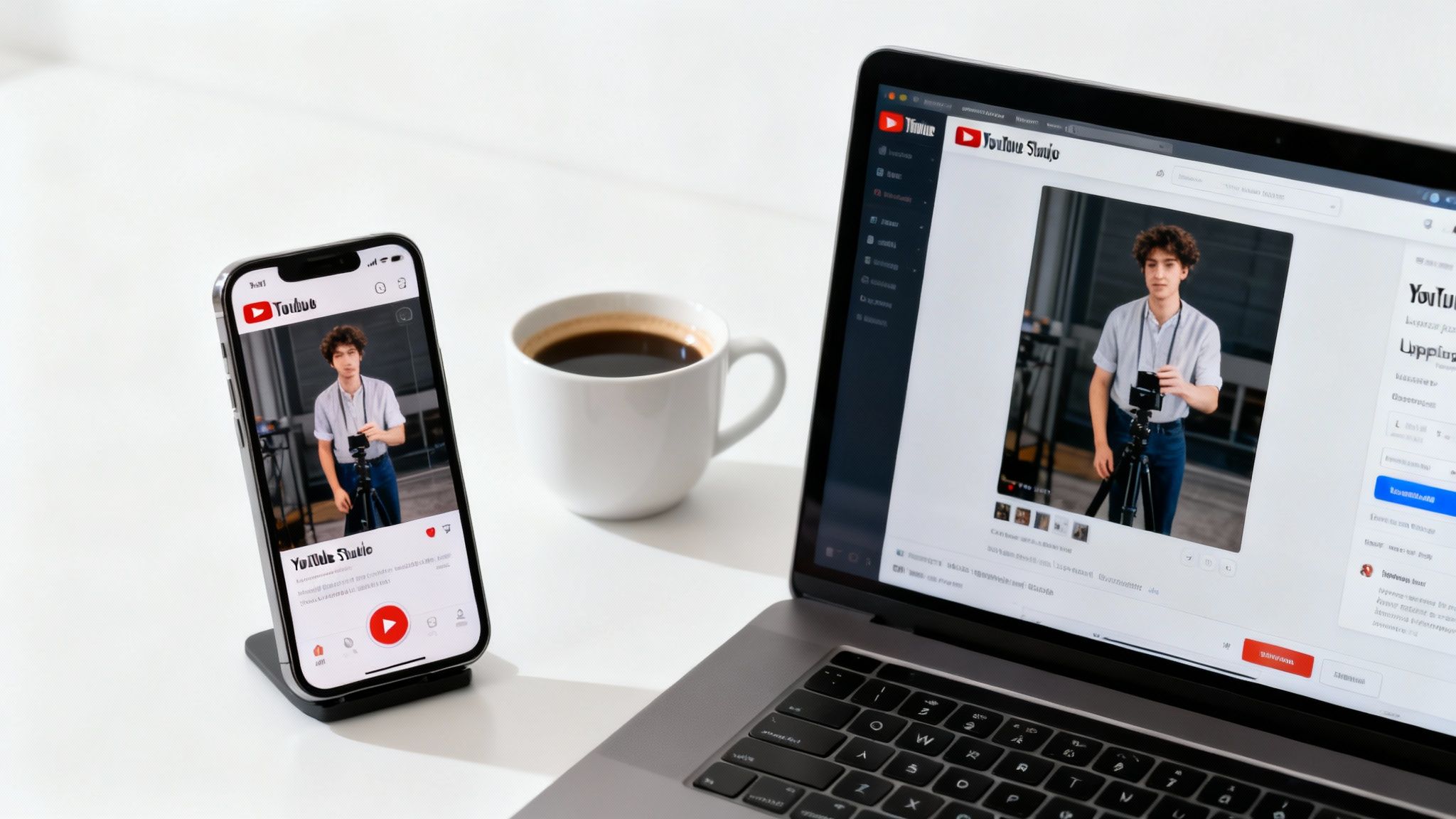
Whether you’re in the middle of a spontaneous moment or have a polished edit ready to go, YouTube makes it easy to get your Short published. The process looks a little different depending on whether you're on your phone or computer, but both paths are incredibly simple once you get the hang of it.
For creators on the move, the mobile app is basically a pocket-sized studio. It’s perfect for capturing trends as they happen and getting content out quickly.
On the flip side, uploading from your desktop is the way to go for videos that need that extra bit of polish from dedicated editing software. This route gives you much more control over the final cut before it goes live.
Posting from Your Smartphone
The YouTube mobile app is hands-down the fastest way to get your content onto the Shorts shelf. The built-in tools are surprisingly powerful, letting you create some seriously engaging stuff right from your device.
Here’s what the mobile workflow usually looks like:
- Pop open the YouTube app and hit the big plus icon (+) at the bottom.
- Choose "Create a Short" to launch the Shorts camera.
- You can either record on the spot by holding the red button or tap the gallery icon in the bottom-left to upload a vertical video you already have.
- Once your video is in, you can add trending audio, slap on a filter, or overlay some text using the tools on the right.
- When you're happy with your edits, hit "Next" to add a title, tweak visibility settings, and finally, publish your Short.
A quick pro-tip: Always include #Shorts in your title or description. YouTube is pretty good at automatically detecting Shorts, but adding the hashtag is a solid best practice to make sure it gets categorized correctly.
Uploading from Your Desktop
If you’re like me and edit your videos on a computer, then uploading through YouTube Studio is your best friend. This is perfect for creators who use tools like Adobe Premiere Pro or DaVinci Resolve to produce higher-quality, polished content.
The process on desktop is just as straightforward:
- Head over to YouTube Studio and click the "Create" button in the top-right corner.
- Select "Upload videos" and grab your video file. Just double-check that it’s a vertical video under 60 seconds.
- As it uploads, you can fill in the details. This is where you’ll craft a catchy title (don't forget #Shorts!), write a good description, and add some relevant tags.
- One key difference: you can't pick a custom thumbnail for Shorts yet. YouTube automatically grabs a frame from your video, so make sure your clip is visually interesting throughout.
- Finally, set your visibility to Public, Private, or Unlisted and hit "Publish".
If you want a more granular look, you can learn more about how to upload YouTube Shorts and really dial in your strategy. Using the desktop method ensures that even your most carefully edited vertical videos get the attention they deserve on the Shorts feed.
Optimizing Your Short for Maximum Reach
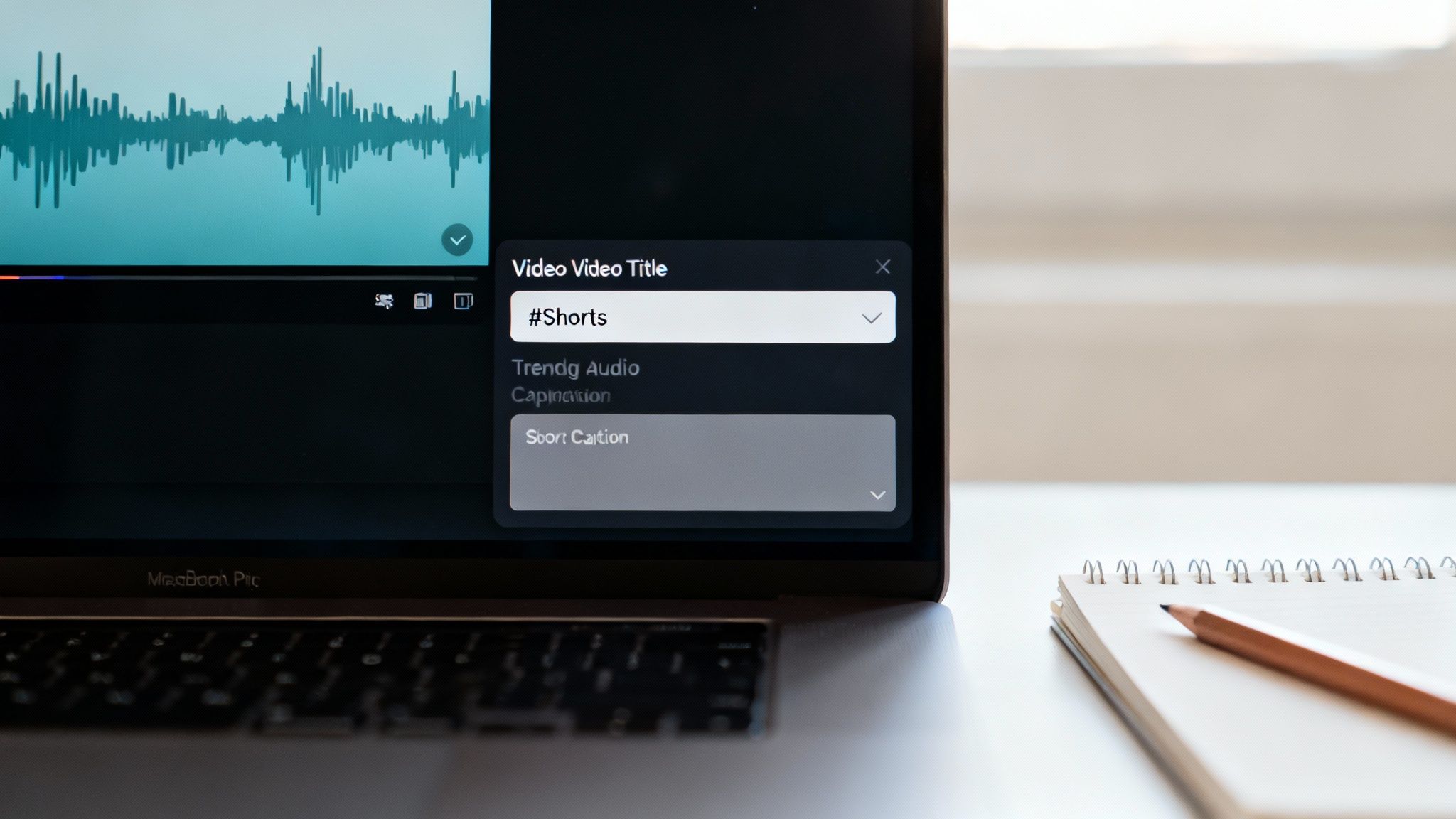
Getting your video uploaded is one thing, but making sure people actually see it? That’s where the real magic happens. If you want to post a Short on YouTube that does more than just sit there, you need to think about optimization. It's the secret sauce that separates a video with a few hundred views from one that blows up.
Let's start with your title. It has to pull double duty: catch a human's eye while also pleasing the algorithm. A great title is specific, searchable, and sets a clear expectation for the viewer. "My New Recipe" is forgettable. "3-Ingredient Brownies You Can Make in 5 Minutes"? Now that's a title that works.
And don't forget the #Shorts hashtag. It's not optional. Slap it in your title or description to make absolutely sure YouTube knows what kind of content you've made.
Strategic Hashtags and Audio
Beyond the mandatory #Shorts, think about adding 2-3 more hashtags that perfectly describe your video's niche. Making a workout video? Go for tags like #fitness, #workout, or #legday. This is how you tell the algorithm exactly who to show your content to.
Another huge lever you can pull is trending audio. Tapping into a popular song or sound can get your Short served up to a massive audience that's already engaging with that trend, giving you a huge head start on reach.
Key Insight: The algorithm loves timely content. Using popular sounds is one of the simplest ways to signal that your video is relevant right now, which can give its initial visibility a serious boost.
Perfecting Your Captions and Format
You absolutely need on-screen captions. Most people are scrolling through Shorts on mute, and without text to guide them, they'll just keep on scrolling. Use bold colors or slick animations to make your captions pop and keep viewers locked in from the first second. This is a non-negotiable step if you want to learn https://www.clipshort.co/en/blog/how-to-make-viral-youtube-shorts that hold attention.
Finally, don't trip at the finish line with bad formatting. Getting the aspect ratio right is crucial. For a full breakdown, check out a guide on vertical video dimensions. The right format ensures your content looks polished and native to the platform, avoiding those ugly black bars or awkward crops that scream "amateur."
Common Mistakes to Avoid When Posting Shorts
https://www.youtube.com/embed/MG5gvgOa7gs
Knowing how to post a Short is only half the battle. To really succeed, you need to know what not to do. I’ve seen so many creators accidentally kill their own reach with simple, fixable mistakes.
If you can just steer clear of these common slip-ups, you'll give your content a much better chance of actually getting seen.
One of the biggest blunders is just ignoring the basic technical specs. If you upload a standard horizontal (16:9) video, it’s going to show up with those ugly black bars on the top and bottom. That immediately screams "low effort" to viewers scrolling by. Similarly, going even one second over the 60-second limit means your video won't even make it into the Shorts feed.
Another one that gets people is forgetting about sound and captions. Think about it: how often are you scrolling through your phone with the sound off? If there's no on-screen text to grab you, you're just going to keep on scrolling. Captions are your secret weapon for keeping people hooked from the very first frame.
Copyright and Audio Blunders
Using copyrighted music without the right permissions is a fast track to a headache. It's tempting to grab a popular song you heard on TikTok, but if you don't get it from YouTube's official Shorts audio library, you're asking for trouble.
Trust me, the risks are not worth the short-term appeal of a familiar track:
- Content ID Claims: Your video could get flagged, and any money it makes will go straight to the copyright holder, not you.
- Video Takedowns: In more serious cases, YouTube might just remove your Short completely.
- Channel Strikes: Keep it up, and you'll get strikes against your account. Enough of those, and your channel could be terminated for good.
Always, always, always use audio from the YouTube Shorts library. It’s the only way to guarantee you have the proper license. This lets you focus on making awesome content without worrying about your channel getting flagged.
The Problem of Inconsistency
Finally, a random posting schedule will kill your momentum before you even build any. The Shorts algorithm loves consistency. Posting five videos in one day and then disappearing for two weeks just confuses it.
You need to set a realistic schedule and actually stick to it. Whether that’s one Short a day or three a week, that consistency builds an audience and tells YouTube your channel is a reliable source of content. Avoid these common mistakes, and you'll be setting yourself up for real growth.
Using AI for Faster Shorts Creation

Let's be real: keeping up with a consistent posting schedule is one of the biggest hurdles for any creator. The grind of creating, editing, and publishing day after day can burn you out fast. This is where AI-powered tools come in, offering a smart way to ramp up your workflow without your quality taking a hit.
This strategy is a lifesaver for "faceless" channels, where the content is all about the story or information, not a person on camera. Instead of sinking hours into manual editing, you can automate a huge chunk of the creation process.
Streamline Your Production with AI
Platforms like ClipShort are built for exactly this. They can take a simple text script—or even a long blog post—and whip it into an engaging Short in minutes. It completely changes the game for how much content you can produce.
Just think about the possibilities:
- Turn one blog post into an entire series of Shorts.
- Generate a video from a single idea or prompt.
- Repurpose audio from a podcast into a dynamic, visual clip.
The real advantage here is speed and consistency. By slashing your production time from hours to minutes, you can finally hit that daily posting schedule the algorithm loves so much.
Getting a handle on what AI generators YouTubers use can give you a massive edge. If you want to see how this works firsthand, check out our free script-to-video AI tools and start creating faster today.
A Few Common Questions About YouTube Shorts
Even with a step-by-step guide, a few questions always seem to pop up when you're just getting started. Let's tackle some of the most common ones I hear from other creators.
Can You Actually Make Money from YouTube Shorts?
Yes, you absolutely can, and it's become a pretty solid income stream for many. As of February 2023, creators in the YouTube Partner Program can earn a cut of the ad revenue shown between videos in the Shorts Feed.
It's not a direct payment per Short; instead, YouTube pools all the ad money and divides it among creators based on their channel's share of total Shorts views. To get in on this, you need to meet the Partner Program requirements—either the standard ones or the Shorts-specific goal of 1,000 subscribers and 10 million valid public Shorts views in the last 90 days.
Do Shorts Really Help Your Main Channel Grow?
They definitely can, and I've seen it happen time and time again. Shorts are a fantastic tool for getting your content in front of fresh eyes—people who have likely never seen your long-form videos. One viral Short can send a massive wave of new subscribers your way.
The trick is to keep your Shorts aligned with your channel's main topic. If you make long-form videos about baking, your Shorts should be about baking, too. This way, the new subscribers you attract are actually interested in what your channel is all about, making them more likely to stick around for your bigger videos.
How Do I Choose a Good Thumbnail for a Short?
This is a bit of a tricky one because it works differently than for regular videos. Right now, you can't upload a totally custom thumbnail for a Short. If you upload from your computer, YouTube just grabs a random frame for you.
But, you get a little more control when you upload from the mobile app. When you get to the final details screen before hitting "Publish," just tap the little pencil icon on the video preview. This lets you slide through the entire video and pick the exact frame you want to use as the thumbnail. It’s a small detail, but picking an eye-catching moment can make a huge difference.
Ready to skip the tedious editing and start posting more consistently? ClipShort uses AI to turn your ideas into engaging, faceless videos in just a few minutes. It's the perfect way to create viral Shorts without ever needing to show your face. Start creating faster with ClipShort.